A clean, click-through crosshair overlay you can tune without leaving the game.
Crosshair Studio draws a transparent reticle at the center of your screen and gives you a full editor for its shape, size, color, outline, glow, and behavior. It is purely cosmetic: it does not read game memory, control recoil, or touch game files. You can also hold a key and move the mouse to place it precisely, and bind each saved profile to a game process.
Highlights
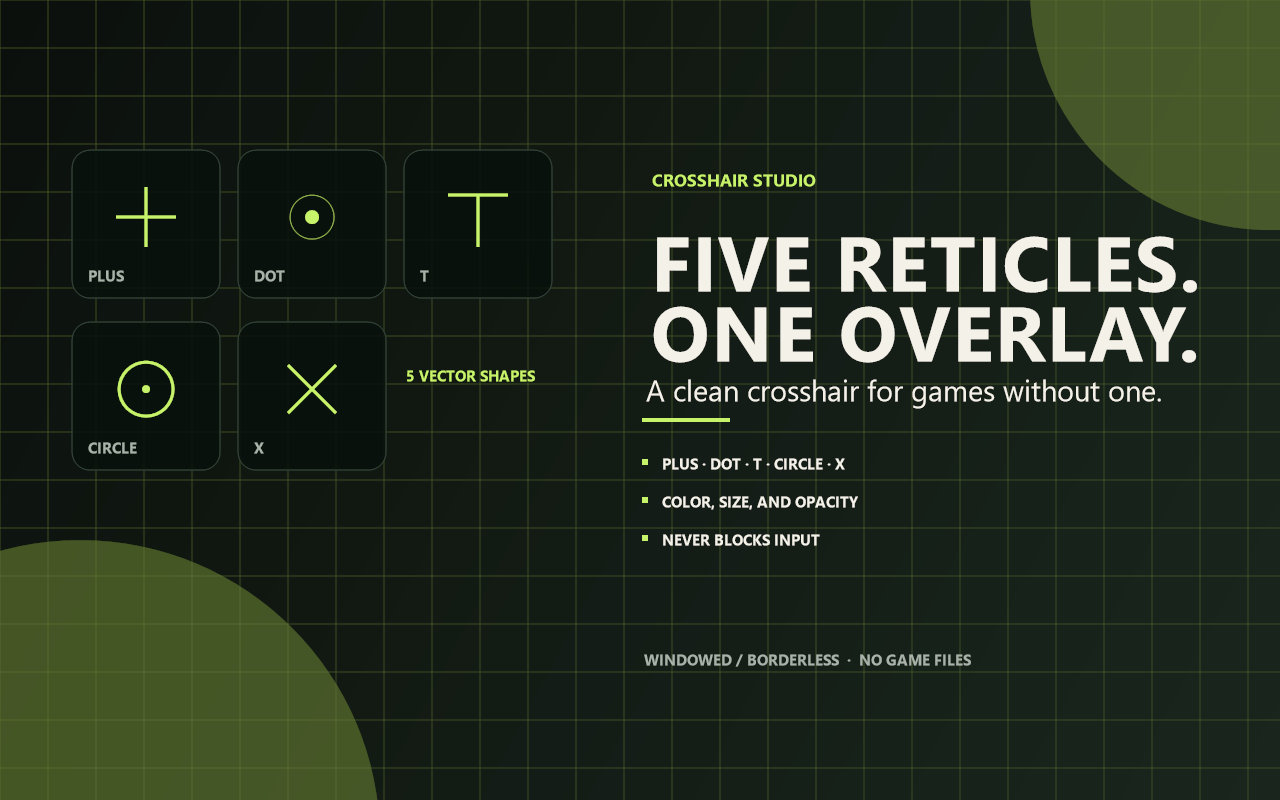
- Five shapes: Plus, Dot, T, Circle, and X.
- Fifteen extra shapes in eight pre-rendered tones, plus nine hand-drawn presets.
- Five tabs in Options: Reticle, Presets, Position, Behaviour, Keys.
- Clean shapes: Circle is a true vector ring, and X uses continuous diagonal geometry, so neither reads as a chain of blocks.
- Transparent by design: no background panel is drawn. Only the crosshair appears on screen.
- Full editor in Rebind: color, outline color and width, glow, center gap, arm length, thickness, dot size and shape, opacity, and X/Y offset.
- Mouse placement: hold F11, move the mouse, and release to save the reticle position. Esc cancels.
- Four saved profiles: build one crosshair per game and switch instantly. Bind a profile to the current game's process from the editor menu, and it loads automatically when that game is focused.
- Toggle or hold: use F12 as a toggle, or hold F12 to show the reticle only while the key is down.
- ADS behavior: keep the reticle normal, compact it, or hide it while right mouse is held.
- Cosmetic input bloom: the center gap opens slightly while moving, jumping, or firing. This is visual feedback, not real weapon spread.
- Never blocks input: hotkeys and ADS detection use passive observers, so the game keeps every key and mouse event.
- Preview on edit: if you hid the reticle, opening the editor or changing a setting brings it back automatically in Toggle mode.
- Settings persist: visibility, profiles, the last profile, and the per-game memory are restored automatically.
Quick Start
- Install Crosshair Studio from Rebind.
- Approve the overlay-related permissions Rebind requests.
- Start the script.
- Use F12 to show or hide the crosshair.
- Press Ctrl+F12 to open the editor menu.
- Pick a preset, tune it, then save it to a profile.
- Hold F11, move the mouse to the exact aim point, and release.
- In the editor, use Bind profile N to current game to link it to the foreground game process.
The default reticle is a green Plus crosshair with a black outline.
On Windows, Rebind overlays need borderless or windowed fullscreen. Exclusive fullscreen hides them.
Controls
| Key | Action |
|---|---|
| F12 | Toggle the crosshair. In Hold mode, hold F12 to show it. |
| F11 | Hold to move the reticle with the mouse; release to save. |
| Ctrl+F12 | Open or close the Crosshair Studio editor. |
| Alt+F12 | Cycle through saved profiles. |
The combos follow the configured Toggle / editor key. The editor is always Ctrl + that key, and profile cycling is Alt + that key.
If F12 is a screenshot key in your game, change the toggle key in Rebind's Options → Crosshair Studio panel.
PNG presets
Nine original transparent 160x160 reticles are included:
plus-thingap-crossdot-finecircle-dott-reticlebracketschevronsniperglow-ring
Select one from Options → Presets → PNG preset, or open the editor with Ctrl+F12 and pick it from the Classic presets tab. PNG presets are static art: colour, outline, gap and glow apply only to the generated shapes. Set PNG preset to none to return to the generated reticle.
Extra presets
Fifteen more shapes ship with the pack, each pre-rendered in eight tones.
- Dot 1-4, Ring 1-3, Core 1-3, Bar wide / short / mid / tall / long.
- Pick a shape in PNG preset. Preset colour defaults to match colour, which uses the closest tone to your crosshair colour.
These are drawn at their native 128 px, so they stay sharp without any upscaling. The eight tones are pre-rendered files - an overlay image cannot be tinted at draw time - so match colour picks the nearest one rather than your exact hex.
Crosshair art by Kenney (kenney.nl), released under CC0. Attribution is not required; it is here because it is deserved.
Editor
Open the editor with Ctrl+F12, or use the Crosshair Studio panel in Rebind's Options tab. The panel is split into five tabs.
Reticle
| Setting | What it does |
|---|---|
| Shape | Plus, Dot, T, Circle, or X. |
| Shape size | Overall size of the generated reticle, 40 to 320 px. |
| Dot size / shape | Centre dot size and round or square shape. Set to 0 for none. |
| Thickness | Line thickness. |
| Arm length | Length of the arms. |
| Center gap | Space between the centre and the arms. |
| Opacity | Whole-crosshair transparency, from 0 (invisible) to 1 (opaque). |
| Crosshair color | Main reticle colour. |
| Outline color / width | Dark or coloured edge around the reticle. |
| Glow | Soft coloured halo behind the reticle. |
Presets
| Setting | What it does |
|---|---|
| PNG preset | A fixed-art reticle from the classic or extra set. Applies instead of the shape. |
| Preset colour | Tone for the extra presets: match colour follows the picker, or choose one of eight directly. |
| Preset size | Size of the extra presets in pixels, 16 to 200. |
Position
| Setting | What it does |
|---|---|
| Centre on | Display, game window, or auto. Auto gives a windowed or lower-resolution game its own centre. |
| Offset X / Y | Nudge the reticle away from exact centre. |
| Game offset preset | Per-game memory: seeds a known offset the first time, then remembers every setting you change while that game is selected. |
Behaviour
| Setting | What it does |
|---|---|
| Activation | Toggle or Hold. |
| Show on start | Whether the reticle is visible when the script starts. |
| While ADS | Show normally, compact to 70%, or hide while right mouse is held. |
| Input bloom | Cosmetic gap expansion while moving, jumping, or firing. |
| Move bloom / Fire bloom | How far the gap opens for each trigger. |
| Bloom speed | How quickly the gap opens and settles. |
Keys
| Setting | What it does |
|---|---|
| Toggle / editor key | The main key; Ctrl and Alt combinations follow it. |
| Placement key | Hold-to-place key; default F11. |
The Ctrl+F12 menu mirrors the same structure with its own tabs: Shapes, Classic presets, New presets, Custom, and Tools. Tools holds the on/off toggle, place-with-mouse, profile save / load / bind / unbind, reset, and help.
Transparency
- Crosshair Studio draws no background; the area around the reticle stays fully transparent.
- Opacity affects the whole crosshair.
0makes it invisible,0.95is the default, and1is fully opaque. - Advanced users can add alpha directly to a color with
#RRGGBBAA. For example,#a5e63c80is the default green at roughly 50% alpha.
Profiles
There are four profile slots. A typical setup:
- Open the editor with Ctrl+F12.
- Tune the crosshair.
- Choose Save 1.
- With the game focused, choose Bind 1.
- Tune a different look and save it to profile 2, then bind that profile to the other game.
- Switch manually with Alt+F12, or let the matching process load the profile automatically when it becomes the foreground window.
Each profile stores its own shape, size, colours, outline, glow, bloom, offset, preset choice and game-process link. Unbind removes the automatic link without deleting the crosshair settings; a profile with no process link is manual only.
Compatibility
- Rebind 3.14.0 or newer.
- Windows only: the window and monitor calls it relies on are not available on macOS.
- Works over borderless or windowed fullscreen games.
- Exclusive fullscreen hides Rebind overlays. Switch the game to borderless or windowed mode.
- Rebind overlays are click-through and stay out of normal Windows recordings and OBS captures.
Some games and anti-cheat policies restrict external overlays. Check the rules for the game you play before using any overlay.
Troubleshooting
The crosshair is invisible
- Press F12 once. The reticle may have been toggled off.
- Check Activation. If it is set to Hold, hold F12 instead of tapping it.
- Check Opacity. A value of
0is fully transparent. - Make sure the script is running and Show on start is enabled.
- If the game is in exclusive fullscreen, switch to borderless or windowed.
- In Toggle mode, opening the editor or changing a setting now re-shows the reticle automatically.
The hotkey does not work
F12 may be reserved by the game or another app. Change Toggle / editor key in the Crosshair Studio options.
The crosshair appears in the game but not in recordings
That is expected. Rebind overlays are excluded from normal Windows recordings and OBS.
The crosshair is too thick or too faint
Lower Thickness and Outline width, or adjust Opacity and Glow.
Privacy and Permissions
- Crosshair Studio does not read game memory, inject into the game, modify game files, or capture the screen.
- It does not request network access or the ability to run external programs.
- It does not read the clipboard.
- Rebind's overlay engine may ask for overlay-related permissions during installation. Crosshair Studio requests screen only to read monitor geometry for mouse placement; it does not capture or inspect pixels.
- It does not request
target:*or clipboard access. - Crosshair Studio itself has no account, telemetry, or cloud service.
What It Does Not Do
- It does not control recoil or provide aim assistance.
- It does not read the game's real spread, recoil, or aim state.
- It does not inspect game state or read the game's aim point. Automatic profiles are based only on the foreground process name you bind.
- It does not draw weapon images or web content.
- Bloom is cosmetic and approximate.
- It has no sniper tunnel-vision overlay. Rebind caps how large an overlay surface can be, so a full-screen vignette cannot be drawn around the reticle.
Changelog
1.5.9
- Fixed: compact shrank shapes twice, and re-rendered every frame while aiming.
- Fixed: the preset image cache was not cleared when switching profiles.
- Fixed: profiles did not restore their on/off state.
- Added: Unbind in the editor's Tools tab.
- Packaging: Windows-only declared, local state file no longer included.
1.5.8 - 1.5.6
- Added: per-game memory in Game offset preset — every setting, not just offsets.
- Added: Shape size slider, independent of preset size.
- Added: five tabs in the Options panel.
- Fixed: classic presets ignored the size slider.
- Fixed: choosing a shape now switches an active preset off.
1.5.5 - 1.5.0
- Added: eight pre-rendered tones for the extra presets, with match colour.
- Added: Custom tab — drop PNGs into
assets/presets/custom/. - Added: tabbed editor menu replacing a 60-row flat list.
- Removed: X-reticle.
1.4.x
- Added: fifteen extra shapes drawn at native 128 px.
- Added: Preset size and native-size drawing.
- Fixed: centring on the work area instead of the display; it now follows resolution and monitor changes.
- Fixed: colour settings reaching fixed-art presets.
Requirements
- Rebind 3.14.0 or newer.
- Borderless or windowed fullscreen for the overlay to be visible.
- Overlay permissions granted once in Rebind.
Crosshair Studio v1.5.9 — cosmetic crosshair overlay for Rebind.