1
2
3
4
5
6
7
8
9
10
11
12
13
14
15
16
17
18
19
20
21
22
23
24
25
26
27
28
29
30
31
32
33
34
35
36
37
38
39
40
41
42
43
44
45
46
47
48
49
50
51
52
53
54
55
56
57
58
59
60
61
62
63
64
65
66
67
68
69
70
71
72
73
74
75
76
77
78
79
80
81
82
83
84
85
86
87
88
89
90
91
92
93
94
95
96
97
98
99
100
101
102
103
104
105
106
107
108
109
110
111
112
113
114
115
116
117
118
119
120
121
122
123
124
125
126
127
128
129
130
131
132
133
134
135
136
137
138
139
140
141
142
143
144
145
146
147
148
149
150
151
152
# PixelState

A World of Warcraft addon (Classic Anniversary and WoW Forever) that shows your character's state
as seven small colored squares in the top-left corner of the screen. A program
that reads those pixel colors can decode the state without touching the game.

## Install

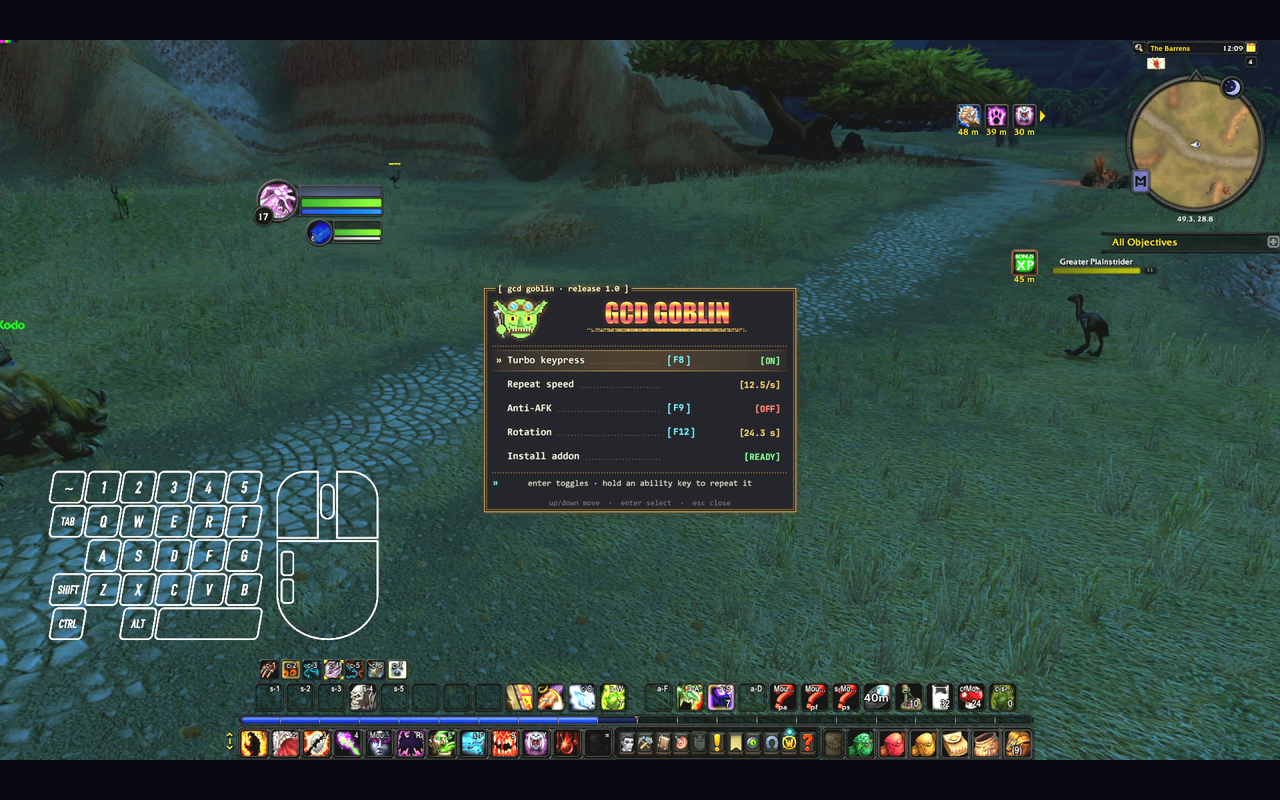
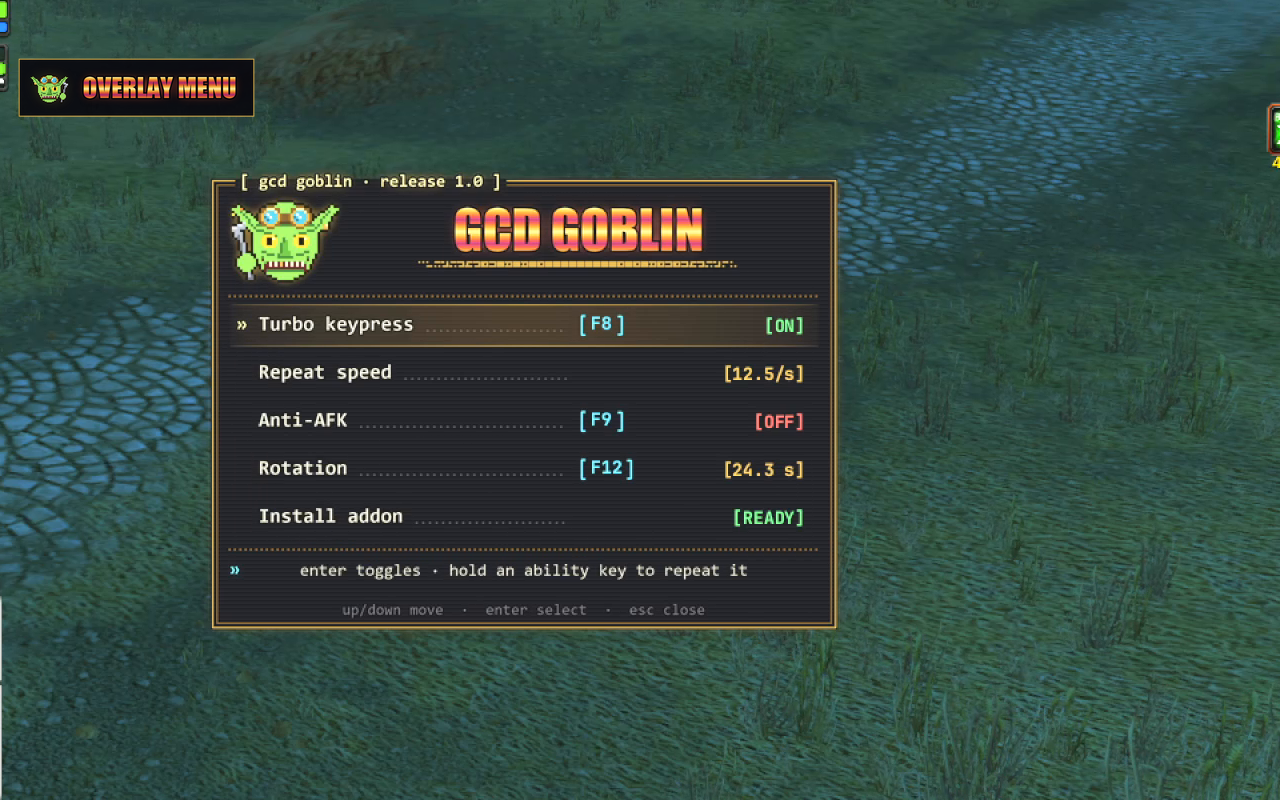
It ships with GCD Goblin: pick **install addon** in its menu with the
game focused, then `/reload`. By hand, copy this folder into the game's
AddOns folder, such as:

```
C:\Program Files (x86)\World of Warcraft\_forever_\Interface\AddOns\PixelState
```

Enable PixelState on the character select AddOns screen.

## Layout

The squares sit in a row starting at the very top-left pixel. Each one is
4 x 4 screen pixels, so square N starts at x = N * 4. Sample the center pixel
of each square, at x = N * 4 + 2 and y = 2.

Every pixel has a red, green and blue value from 0 to 255. Each of those values
stores one number.

| Square | Red | Green | Blue |
|---|---|---|---|
| 0 | 255 | 0 | 255 |
| 1 | X position, high byte | X position, low byte | Facing |
| 2 | Y position, high byte | Y position, low byte | Flags |
| 3 | Map ID, high byte | Map ID, low byte | Player health |
| 4 | Player power | Target health | Checksum |
| 5 | Player level | Target level | Flags 2 |
| 6 | Typing | Typing | Typing |

## What each value means

### Square 0: sync marker

Always magenta, 255 0 255. If the reader doesn't see this color at square 0,
the strip is covered, off screen, or the colors are being altered. Ignore the
other squares until it shows up.

### Square 1 and 2: position

X and Y are your position on the current zone map, the same numbers map
addons show as coordinates. They are stored as 16-bit values split across two
channels:

```
x = (red1 * 256 + green1) / 65535      0.0 = left edge,  1.0 = right edge
y = (red2 * 256 + green2) / 65535      0.0 = top edge,   1.0 = bottom edge
```

Multiply by 100 to get the familiar map coordinates, such as 45.2, 61.8.
These coordinates are only meaningful together with the map ID in square 3.
Both read 0 where the game hides your position, such as inside dungeons.

### Square 1 blue: facing

The direction your character faces, as a fraction of a full turn:

```
facing_radians = blue1 / 255 * 2 * pi
```

0 is north, and the angle increases counterclockwise, so pi / 2 is west.
Each step is about 1.4 degrees.

### Square 2 blue: flags

Yes or no states, added together:

| Value | Meaning |
|---|---|
| 1 | You are in combat |
| 2 | You have a target |
| 4 | Your target is dead |
| 8 | You are dead or a ghost |
| 16 | Your target is in range of Shadow Bolt |
| 32 | The game said you are facing the wrong way, in the last second |
| 64 | You are auto-attacking, melee or wand |
| 128 | You are casting or channelling |

The range spell is `RANGE_SPELL` at the top of `PixelState.lua`. Change it to
a spell your class has, by its exact in-game name.

Test each one with a bitwise AND. A value of 3 means in combat with a target.
A value of 6 means you have a dead target selected, such as a mob to loot.

### Square 3: map ID

The zone map you're on, as a 16-bit value:

```
map_id = red3 * 256 + green3
```

It changes when you cross into a new zone or subzone map. A value of 0 means
the game reports no map.

### Square 3 blue and square 4 red and green: percentages

Health and power are scaled so 255 means full:

```
percent = value / 255 * 100
```

- **Square 3 blue** is your health.
- **Square 4 red** is your primary power, which is mana, rage or energy
  depending on your class and form.
- **Square 4 green** is your target's health. It reads 0 with no target.

### Square 4 blue: checksum

The sum of the other fourteen values in squares 1 to 5, modulo 256:

```
checksum = (red1 + green1 + blue1 + red2 + green2 + blue2
          + red3 + green3 + blue3 + red4 + green4 + red5 + green5 + blue5) % 256
```

If your computed sum doesn't match blue4, throw that sample away. A mismatch
means the read caught the screen mid-redraw, or something shifted the colors.

### Square 5: levels

- **Red** is your character level, 1 to 70.
- **Green** is your target's level. It reads 0 with no target and 255 for a
  target shown as a skull (??), which is far above you.
- **Blue** is a second set of flags: 1 means your target is within about 10 yards (melee reach), from `CheckInteractDistance`; 2 means your target can be attacked, from `UnitCanAttack`; 4 means you are moving, from `GetUnitSpeed`.

### Square 6: typing

White, 255 255 255, while a text box has keyboard focus (`GetCurrentKeyBoardFocus`):
you are typing in chat or another edit box. Black, 0 0 0, otherwise. Full-on
and full-off survive any gamma, brightness or contrast setting, so read it as
typing when red is above 127. It is outside the checksum.

## Keeping colors exact

The decoding of squares 1 to 5 only works if the colors reach the screen unchanged.

- Leave the in-game gamma, brightness and contrast at their defaults.
- Turn off Windows HDR and night light for the game's monitor.
- Turn off GPU color filters and any overlay that tints the screen.
- Keep the top-left corner of the game window uncovered.

If square 0 doesn't read exactly 255 0 255, one of these is the cause.