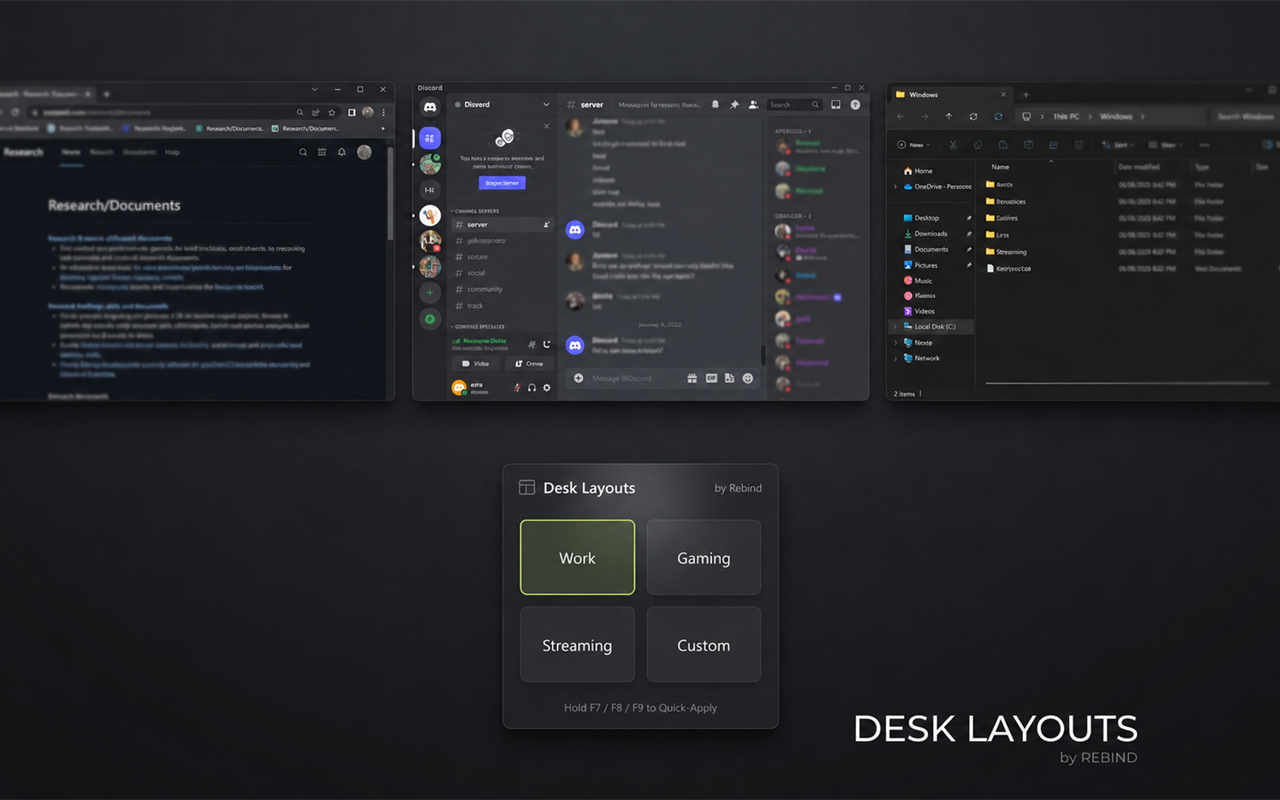
Desk Layouts
Save your window arrangement once. Bring it back with one key.
Desk Layouts is a lightweight window-layout manager for Rebind. Arrange your apps the way you like, save the layout into a slot, and restore it whenever you switch between work, gaming, streaming, or anything else.
It only arranges windows that are already open. It does not launch apps.
Highlights
- Four named layout slots: Work, Gaming, Streaming, and Custom by default.
- One-key restore: F9 applies the active layout.
- One-key capture: F8 saves the current visible windows into the active slot.
- Layout menu: F7 opens an overlay menu for applying, saving, and restoring.
- Monitor-aware: each window is stored relative to the monitor it was on.
- Process and title matching: finds the right windows again even if their position changed.
- Up to 8 windows per layout: enough for a normal desktop without turning the layout into clutter.
- No app launching: Desk Layouts never starts or closes programs.
- Configurable hotkeys and slot names in Rebind's Options panel.
- Local only: layouts are stored in a small JSON file beside the script.
Quick Start
- Install Desk Layouts from Rebind and start it.
- Arrange the windows you want on screen.
- Press F7 to open the layout menu.
- Choose Save current → Work.
- Move things around, then press F9 to restore Work.
To build a second layout:
- Open the windows for the second setup.
- Press F7.
- Choose Save current → Gaming.
- Switch between them from the menu or with the active-slot hotkeys.
Controls
| Key | Action |
|---|---|
| F7 | Open or close the layout menu. |
| F8 | Save all visible windows into the active slot. |
| F9 | Apply the active slot. |
| Up / Down | Move through the open menu. |
| Enter | Select the highlighted item. |
| 1–9 | Jump directly to a menu item. |
| Esc | Close the menu. |
The active slot changes whenever you save or apply a layout. All three main hotkeys can be changed in Rebind → Options → Desk Layouts.
The menu is a custom overlay: it uses a dark neutral panel, grouped sections, a highlighted row, and a visible active-slot label. It is keyboard-only and never takes focus from the app underneath.
The menu also has Apply last layout and Help / hotkeys.
What Gets Saved
For each visible window, Desk Layouts stores:
- the process name
- the window title
- the monitor it was on
- its position relative to that monitor
- its width and height
When you apply a layout, it looks for matching windows by process and title, then moves them back into place. Windows that are closed or cannot be matched are skipped and reported in the result message.
Layout positions are relative to each monitor, so a layout can survive a resolution change or a monitor being rearranged. If a saved monitor is missing, the window falls back to the primary monitor and is clamped on screen.
Limits
- Only running windows are arranged. Apps are not launched.
- Up to 8 visible windows are saved per layout.
- Minimized windows and windows smaller than 80×80 are ignored.
- A window whose process and title both changed may not be matched.
- Windows that refuse to move, such as some elevated or protected windows, are skipped.
- Layouts are manual. There is no automatic switching when a monitor is connected or an app starts.
- This is not a tiling window manager and does not snap while you drag.
- Windows is the primary target. macOS support depends on Rebind's partial window API.
Settings
Open Rebind → Options → Desk Layouts to change:
- menu hotkey
- save hotkey
- apply hotkey
- the four layout names
- whether notifications are shown
Changing a keybind reloads the script so the new bind takes effect.
Privacy and Permissions
- Desk Layouts does not capture the screen or read pixels.
- It does not use the network.
- It does not run external programs.
- It does not read or write the clipboard.
- It only uses Rebind's window list and window movement APIs, plus a local JSON file for saved layouts.
- Rebind's overlay engine may ask for overlay-related permissions during installation. Those are used to draw the menu and notifications.
Troubleshooting
A window is not being restored
Make sure the app is still running and has a visible window. If its title changed completely, Desk Layouts may not recognise it.
Nothing moves after F9
The active slot may be empty. Press F7 and check the slot's hint, or save a layout first with F8.
The menu does not open
The hotkey may be taken by another app. Change it in Options, or make sure Rebind overlays are visible. Exclusive-fullscreen games hide Rebind overlays.
A window lands slightly off screen
Desk Layouts clamps positions to the monitor work area, but some apps enforce their own minimum or maximum window sizes.
Requirements
- Rebind 3.9.0 or newer
- Windows recommended
- At least one visible window to save
Desk Layouts v1.0.1 — save and restore your desktop arrangement with Rebind.