
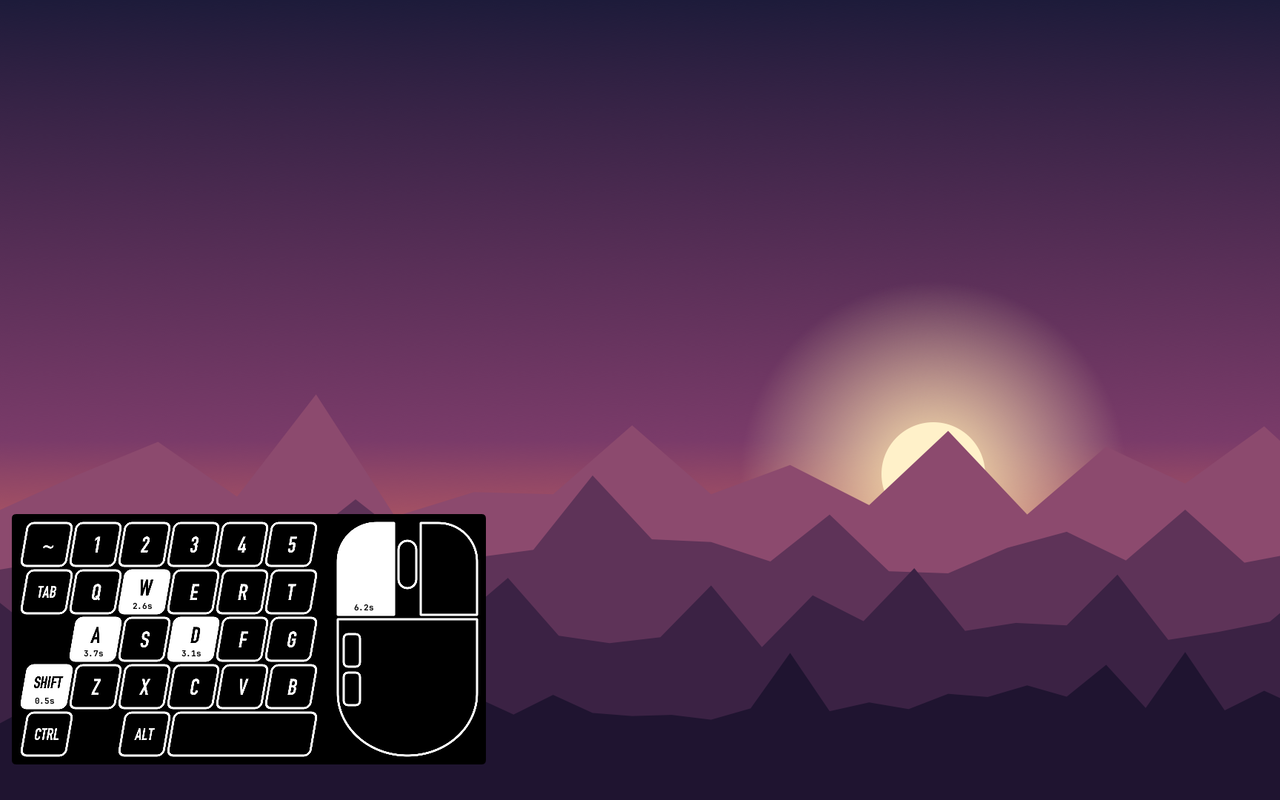
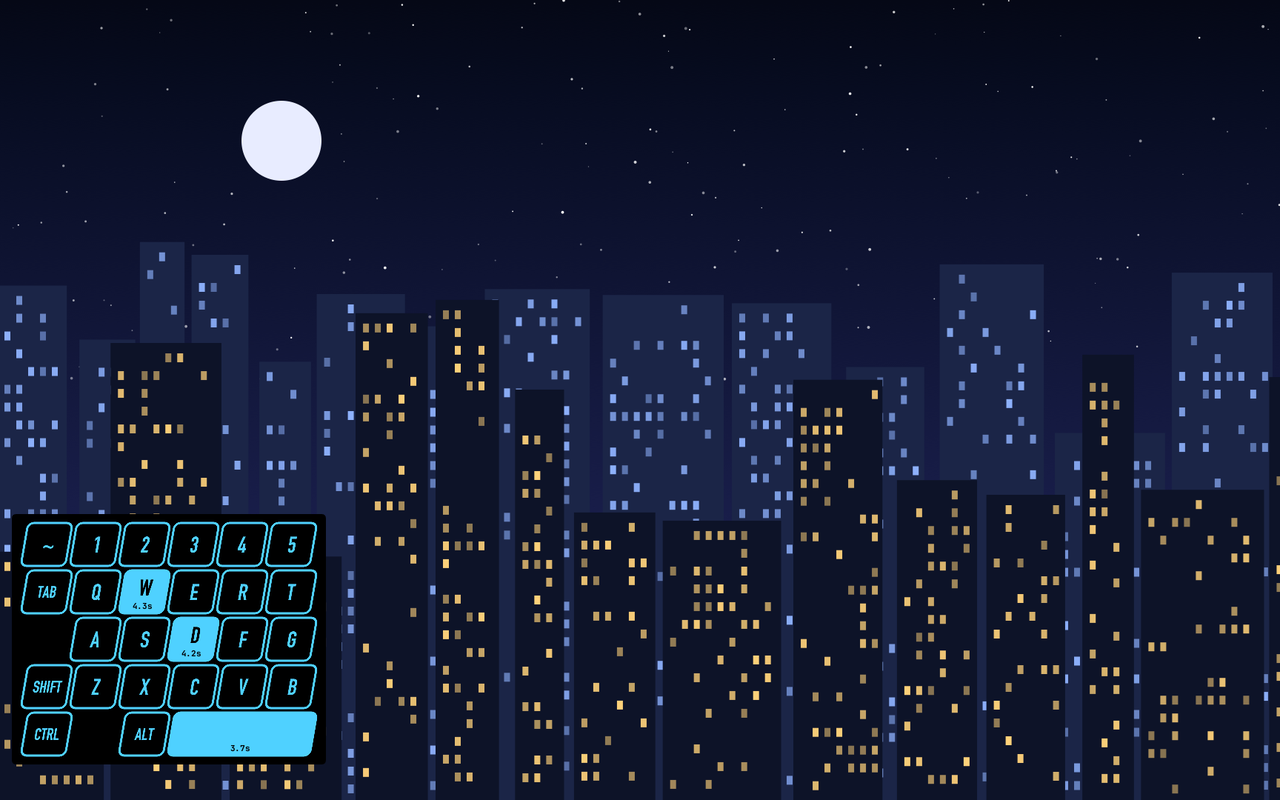
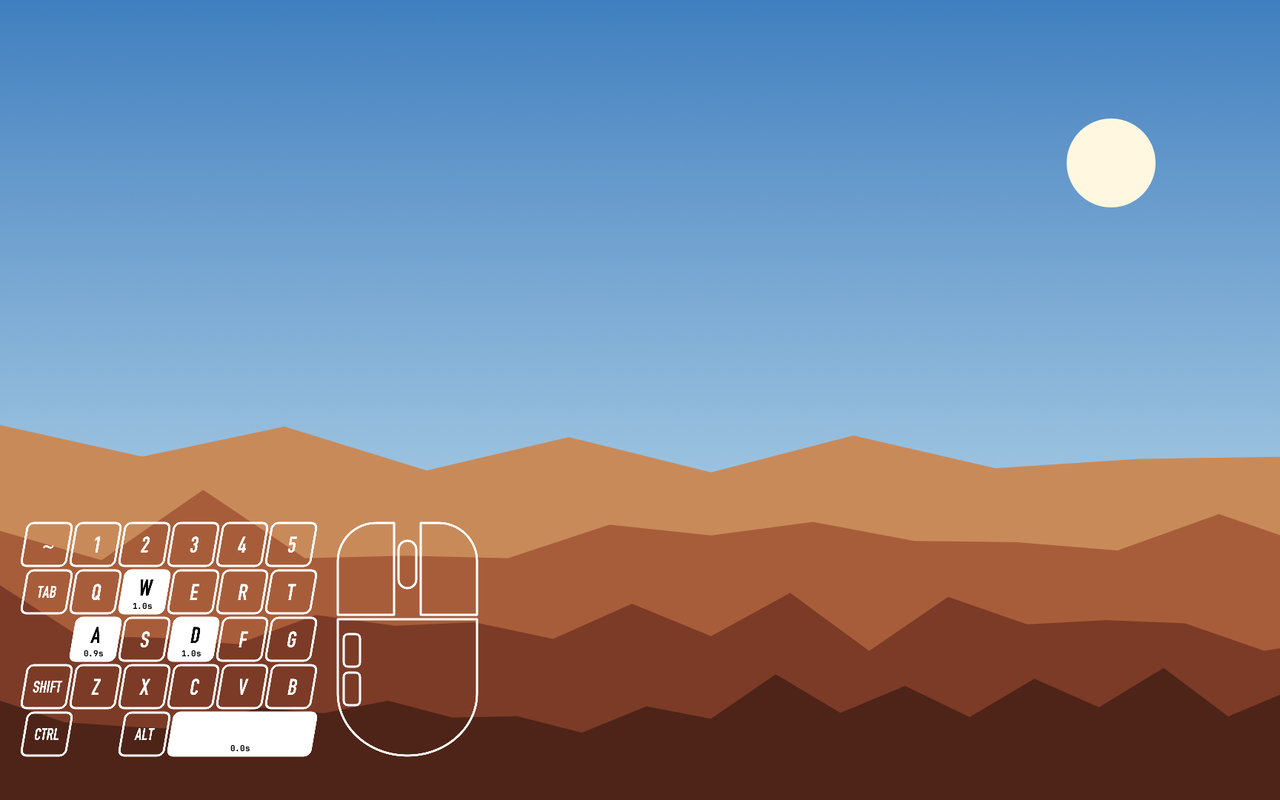
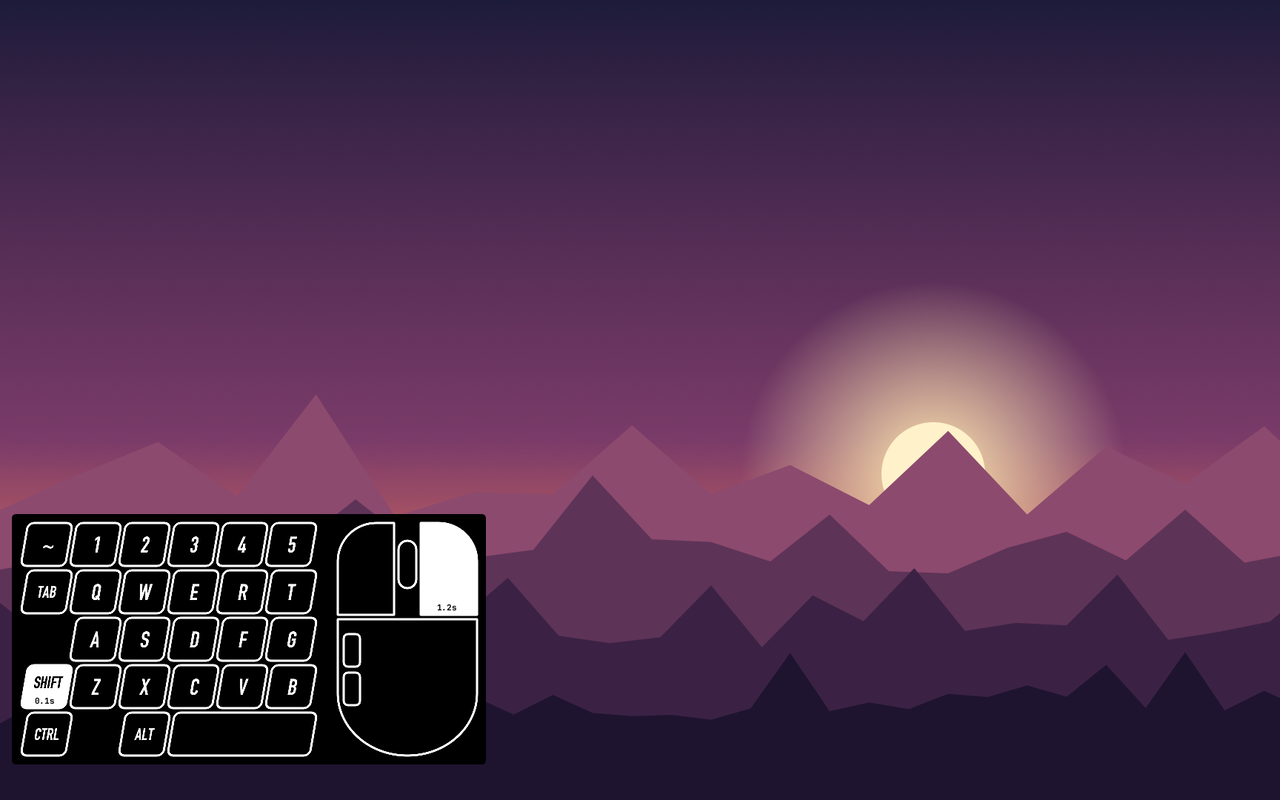
A keyboard and a mouse drawn on screen, over every app and game. Each key and button fills in while you hold it and counts how long it has been held, so viewers of a stream, a recording, or a tutorial can see exactly what you press and for how long.
The keyboard is the left-hand block most games use: ~ and 1 to 5, Tab, Q to T, A to G, Shift, Z to B, Ctrl, Alt, and Space. The mouse shows left, right, and middle click, both side buttons, and the wheel, which lights for a moment on each scroll.
Hold times count in tenths of a second up to 10 seconds (2.4s), then in seconds (37s), then in minutes and seconds (1:05). On the wheel and the side buttons the time shows beside the button.
The overlay only watches. Every key still reaches the app as usual, and nothing you type is saved or sent anywhere.
Requirements
- Rebind 3.14.0 or newer on Windows or macOS.
- No extra permissions. The package declares that it does not read your screen or the clipboard.
Set up
- Start the package. The overlay appears in the bottom left corner of the monitor you are working on.
- To show it only while you play, open Options and list your games in Games, separated by commas: an app or process name such as
cs2, or a word from the game's window title. Matching ignores case. The overlay then shows while one of those windows is focused and disappears within half a second of switching away. - In OBS, add a Display Capture (macOS: macOS Screen Capture) of that monitor to show it on stream. A capture of the game's window alone does not include the overlay, because the overlay is its own window.
- To give the overlay its own spot in the scene, crop the capture to the overlay in OBS.
Settings
All settings are in the package's Options and apply at once.
| Setting | Default | What it does |
|---|---|---|
| Games | empty | Where the overlay shows: while one of these windows is focused. Empty shows it everywhere. |
| Position | bottom-left | The corner or edge of the screen the overlay sits at. |
| Monitor | focused window | The monitor it shows on: the one holding the focused window, the primary one, or the one under the pointer. |
| Distance from the side | 16 | How far in from the left or right edge, from 0 to 1000. No effect when Position is top, bottom, or centred. |
| Distance from the top or bottom | 16 | How far in from the top or bottom edge, from 0 to 1000. No effect when Position is left or right. |
| Size | 100% | From 50% to 150%. |
| Key color | white | The outlines, the labels, and the fill of a pressed key. |
| Background opacity | 100% | The black panel behind the keys. At 0% only the keys show. |
| Show mouse | on | Off: only the keyboard shows, and the overlay gets narrower. |
| Show hold times | on | How long each held key has been down. |
| Show in screenshots and recordings | on | Off: only you see the overlay, and screenshots, screen recordings, and OBS leave it out. |
Limits
- Left and right Shift light the same Shift key, and the same goes for Ctrl and Alt. Keys outside the block above are not shown.
- A Windows game in exclusive full screen hides the overlay. Switch the game to borderless or windowed to see it.
- On Windows, a window that keeps itself above all others can cover the overlay if it opens after the overlay does. Restart the package to bring the overlay back on top.
- Tested live on macOS and Windows with keys and mouse buttons held, hold times, a key color, the mouse hidden, and the background off. The games list, position offsets, and scrolling were tested on macOS. Holding the middle button has not been tested, and scrolling has not been tested on Windows.
Stop
Stop the package from the editor toolbar, or press Left Ctrl + Left Alt + K (Left Control + Left Option + K on macOS) to stop all scripts. Stopping removes the overlay.